
PARTNER HELP
Partner guide.
Share your link, create an offer and help someone claim their plugins.
Start in your partner dashboard
- Sign in using the email attached to your partner account, then choose Partners.
- If you see Finish setup, add the requested payout details. An application under review shows its status instead.
- Once active, your dashboard shows your referral link, assigned codes, payout terms and any enabled offer tools.
Offer types, eligible plugins and limits are set individually. The examples below demonstrate the tools; they do not change your permissions or commission agreement.
Use the right link or code
| Tool | Use it for | Where to get it |
|---|---|---|
| Referral link | Send visitors to the website with your referral attached. It does not automatically discount their order. | Your referral link → Copy. |
| Assigned promo / creator code | Apply the customer benefit assigned to that code. A code by itself does not replace your referral link. | Your code(s), or the creator panel if enabled. |
| Partner offer link | Open a specific discount, package or giveaway. Paid offer orders use your existing commission terms; free claims earn no commission. | Offers & giveaways → Copy link. |
Make your referral URL easier to share
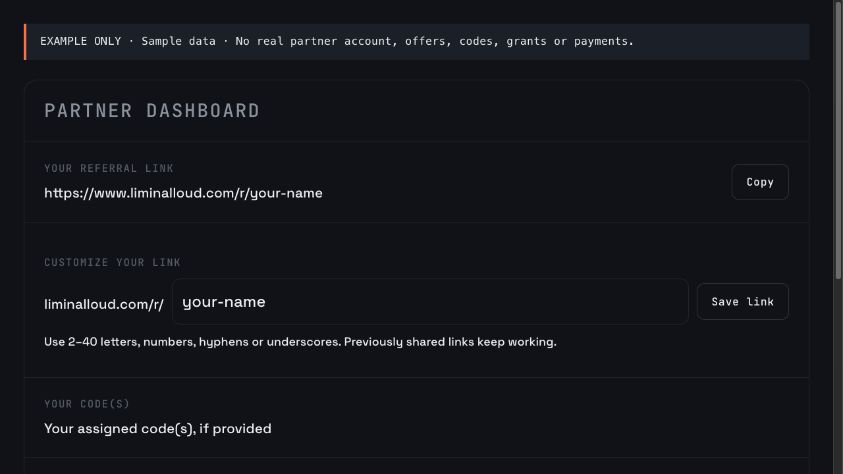
- Enter your preferred name in Customize your link.
- Use 2–40 letters, numbers, hyphens or underscores, starting with a letter or number.
- Choose Save link, then copy the updated Your referral link.
If the name is taken, choose another. Previously shared link names keep working.
Standard website referrals are stored in that browser for up to 30 days. The most recently opened partner link takes precedence. Clearing browser storage or switching browsers can lose that referral.
Example post
Replace the bracketed text and URL with your own.
I use [plugin] for [a specific task].
Affiliate link: [paste Your referral link here]
Create a discount or package
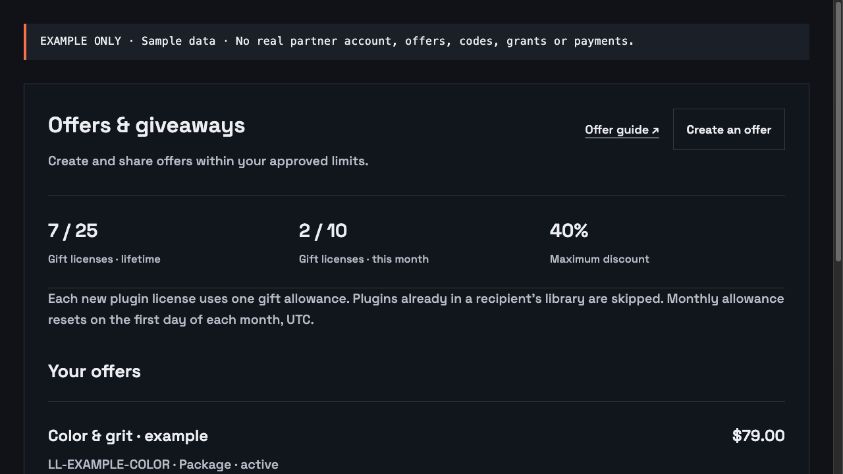
Open Offers & giveaways and choose Create an offer. If the button is missing, self-service offers have not been enabled for your account. Ask the Liminal Loud team which permissions you need.
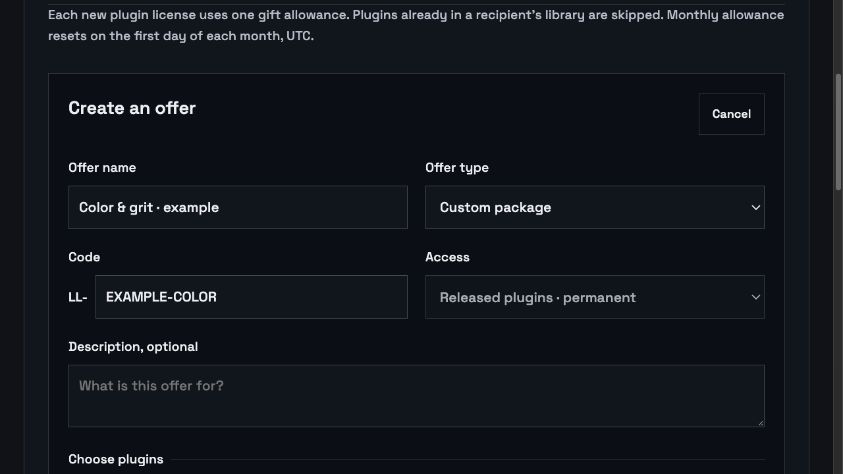
- Name the offer. Use a name people will recognize on the claim page.
- Choose an offer type. Discount code takes a percentage off the selected plugins. Custom package gives those plugins one combined USD price.
- Choose a code. The form already supplies LL-; enter only the remaining part, such as
EXAMPLE-COLOR. Use 3–36 letters, numbers, hyphens or underscores, starting with a letter or number. - Select plugins. Only products approved for your account appear. Discount and package offers use released plugins.
- Set the price or discount. Check the review total and minimum approved price. Package pricing must stay within your approved discount ceiling too.
- Set maximum claims and an end date. Stay within the limits shown beside each field. The date you enter uses your local time.
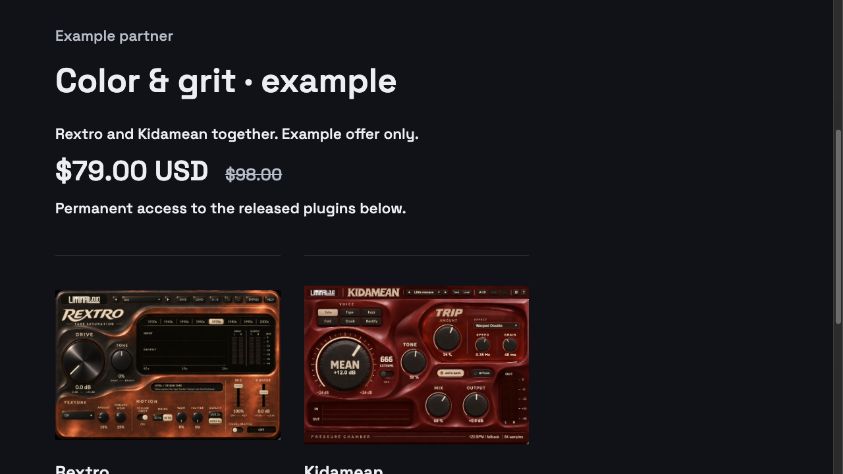
- Review, then Publish offer. Publishing makes its claim link active. Choose Preview offer to check the recipient view, then Copy link to share it.
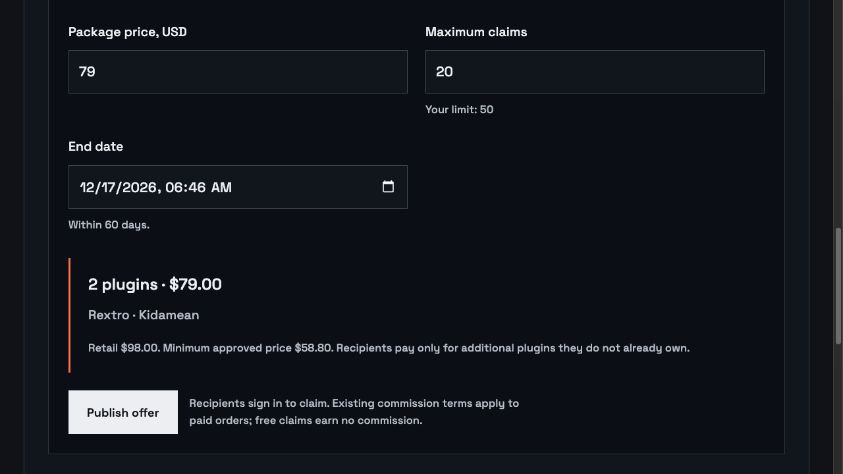
Sample package
- Name
- Color & grit
- Type
- Custom package
- Plugins
- Rextro + Kidamean
- Package price
- $79 USD
- Maximum claims
- 20
Illustrative values, not a live promotion. Use the current prices, products and limits in your own form. Applicable tax appears at checkout.
Change or stop an offer
Pause stops new claims; Resume reopens a paused offer when it is still within its dates and limits. Archive retires it and cannot be undone from the dashboard. Existing licenses are kept, and an already-started checkout may still complete.
Published offers do not have an edit form. To change the contents or price, pause the old offer and create a new one with a different code.
Give away released plugins or beta access
Choose Giveaway. Select Released plugins · permanent for permanent licenses. If enabled, Beta invitation · time limited lets you choose available betas and the number of access days. A timed beta invitation is not a permanent purchase.
Set the claim limit before sharing. A public offer link can be claimed by multiple eligible people, up to that limit. Each account can claim an offer once.
Count licenses, not people
A successful giveaway uses one allowance unit for each new plugin license granted. Giving two plugins to three people can use six units. Creating codes, copying links and opening the offer page use no units.
Already-owned plugins are skipped. For a timed beta invitation, existing beta access must last at least as long as the invitation to count as already covered.
The dashboard shows used / allowed gifts for your lifetime total and this month. The monthly counter resets on the first day of each month, UTC. Both limits apply; a monthly reset does not replenish the lifetime limit.
Example giveaway plan
One released plugin, three recipients, maximum claims set to 3: budget up to 3 new licenses. To keep it one person per link, generate three single-use codes after publishing.
Send single-use codes
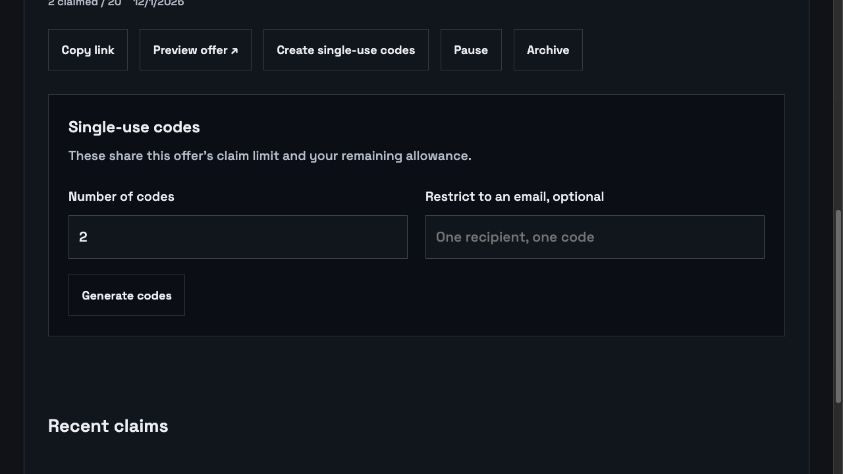
- Find an active offer and choose Create single-use codes.
- Enter how many codes you need, from 1 to 100 per batch. An offer can generate up to 1,000 codes in total.
- For one named recipient, generate one code and fill in Restrict to an email. They must claim using an account with that email.
- Choose Generate codes, then copy and send the claim links yourself. The system does not send an email.
Single-use codes share the parent offer’s claim limit, dates and your remaining allowance. They do not add more gift capacity. For example, an offer capped at three claims still permits only three total claims, even if you generate ten codes.
Example message to a recipient
Here is your Liminal Loud [plugin / package] offer:
[paste the single-use claim link]

Sign in or create a Liminal Loud account to claim it.
[If email-restricted: use the email address I invited.]
After claiming, sign in to Liminal Loud Hub with that same account to install.
What the recipient does
- Open the offer link and check the plugins, price, deadline and access duration.
- Choose Claim this offer for a giveaway or Continue to secure checkout for a paid offer.
- Sign in or create a confirmed Liminal Loud account when prompted. Email-restricted invitations require the invited email.
- Complete checkout if payment is required. Paid offers are fulfilled after payment; a checkout reservation is not a completed purchase.
- Sign in to the latest Liminal Loud Hub with the same account to install. Existing access stays in place, and already-owned plugins are skipped.
Share the full /offer?code=… link for an LL- offer. If someone enters an LL- code in the normal cart, the cart directs them to its offer page. Paid offer checkout does not accept an additional promo code.
Read your earnings
- Referred orders / Revenue driven: the orders and revenue attributed to you.
- Payout terms: your agreed percentage or per-order amount. This is set by Liminal Loud, not by your offer’s discount percentage.
- Est. payout: an estimate, not a completed transfer. Paid out so far shows recorded payouts.
- Held: commission inside the 30-day refund hold, when applicable. A refund can reverse commission.
- Recent claims: activity for your offers. A reserved checkout has not necessarily been paid.
Free giveaway claims earn no commission. Paid offer orders follow your existing terms; sales tax is not commissionable. The rate and eligible amounts come from your agreement and recorded order, not the example figures in this guide.
Tools that only some accounts have
Sub-affiliates
If Your sub-affiliates appears, enter a percentage beside a listed person and choose Save. It allocates 0–50% of your cut, rather than changing the amount Liminal Loud pays on top. Example: allocating 20% of a $10 commission gives the sub-affiliate $2 and leaves you $8. You cannot add new sub-affiliates or change your own commission agreement there.
Creator codes
Some linked creator accounts also have a Your creator code panel under Account. Its free-copy cap and subscriber benefits are separate from Offers & giveaways. Connect the correct Twitch identity and read that panel’s current benefit and remaining count. Do not assume changing one giveaway allowance changes the other.
When something does not work
- I cannot see the partner dashboard.
- Check the signed-in email, application status and any Finish setup prompt. If you were already approved, contact the team before submitting another application.
- Create an offer or a plugin is missing.
- Ask the team to review your enabled offer types and eligible products. Features and limits vary by partner.
- My price or date is rejected.
- Check the approved minimum price, maximum discount, claim limit and end-date window shown in the form. Refresh if your permissions changed.
- The recipient sees “different account” or “already claimed.”
- Check the invited email and whether that single-use code or offer has already been claimed. Send each recipient their own code when you need individual invitations.
- The offer is no longer available.
- Check whether it is paused, archived, expired, at its claim limit or out of gift allowance. For a paused offer, Resume only works while the remaining rules still allow claims.
- The claim succeeded but the plugin is missing.
- Check the account email in the Hub, refresh the library and confirm that the claimed access is still active. A beta must also have a published compatible build available.
Still stuck? Contact Liminal Loud with your partner account email, offer code, the step that failed and the exact error. Never send a password or login code.
Screenshots and sample values are illustrative. Use the permissions, prices and terms shown in your own dashboard.