
Free plugin alternatives
Free AutoKey 2 alternative: Camelot Wheel key finder VST
Camelot Wheel is a free key-finder plugin for producers looking for an alternative to Antares AutoKey 2 for live key detection. It analyzes audio in your DAW and places musical key names, Camelot codes and compatible-key relationships on the same wheel.
The native Camelot Wheel release is available for Apple Silicon Mac as VST3/AU and for Windows x64 as VST3. It is free and installs through Liminal Loud Hub 0.3.15 or later. The Mac build requires macOS 15.5 or later.
Start with the key-finding task
A detector can help you choose a bass root, check a vocal against a backing track or find a compatible section for a transition. Treat the estimate as a starting point and listen to the chords, bass movement and note that feels settled.
A short phrase can suggest more than one key. A drum-only passage may contain little useful tonal evidence. Start with sustained notes or a clear harmonic section, then audition the result against the actual music.
Camelot Wheel analyzes the DAW insert
Put Camelot Wheel on the track, bus or master you want to check. It analyzes the audio arriving at that slot and passes the signal through unchanged with zero added latency. It does not need a microphone or system-audio capture route.
Allow at least eight seconds of tonal material plus stable reads for a key estimate. The rolling evidence window covers about 20 seconds. Upstream faders, mutes and effects can change its input, so check the insert position when an estimate does not match the part you intended to analyze.
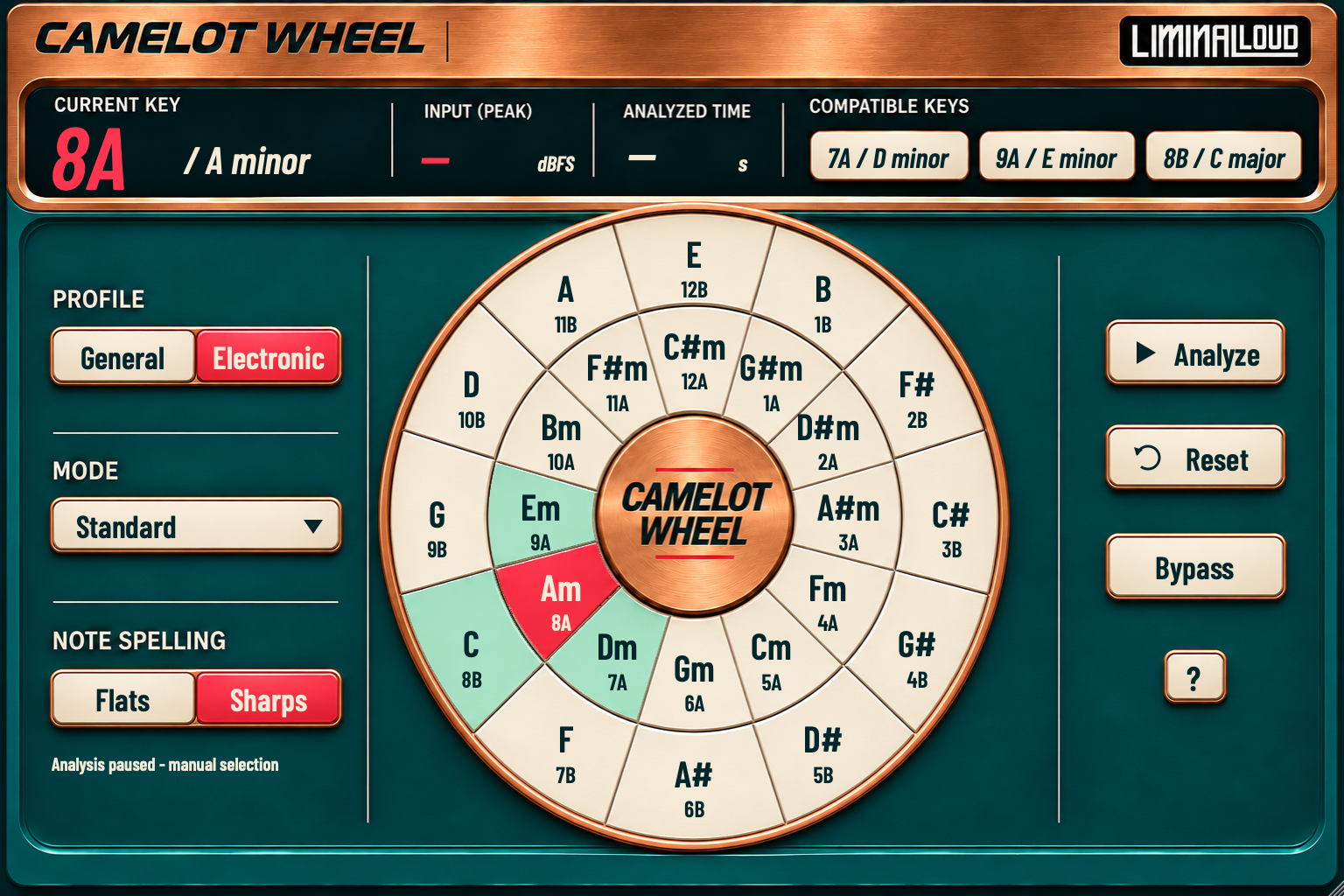
The wheel shows all 24 major/minor keys with both musical names and Camelot codes. Flats/Sharps changes note spelling. Eight relationship modes help you explore compatible choices; Full Map presents the wider supported set together.
Compare Camelot Wheel with AutoKey 2
Antares AutoKey 2 is a paid key, scale and tempo detector. Its advertised features include real-time analysis, audio-file import and sending detected settings to compatible AutoTune plugins.
| Task | Camelot Wheel | AutoKey 2 |
|---|---|---|
| Cost | Free native plugin. | Paid product. |
| Analyze DAW audio | Live insert-input key detection. | Advertised real-time detection. |
| Import a file | Play the source through the DAW insert. | MP3, WAV, FLAC and AIFF import. |
| Detect tempo | Key detection only; no BPM detector. | Tempo detection. |
| Send to AutoTune | No AutoTune integration. | Supported with compatible AutoTune versions. |
Choose Camelot Wheel when you want a free key estimate beside a harmonic-mixing wheel. If your workflow depends on file import, BPM detection or sending settings directly to AutoTune, those are specific AutoKey features to weigh in the comparison.
Use held and live keys deliberately
Analyze follows the incoming audio. Pause holds a key so you can inspect relationships without the display following the next passage. Clicking a wheel segment makes a manual selection and pauses analysis. Reset clears previous evidence before you check another part.
A held key represents your selection. It does not mean the detector has confirmed a new passage. Check the analysis state before using the displayed key to label a sample or choose a new chord.
Check a vocal or melodic loop
- Choose a tonal passage. Play enough of the phrase to include its movement, rather than a single note.
- Check what reaches the insert. Solo or route the intended part if a full bus contains competing harmony.
- Allow a stable estimate. Give the detector time to gather evidence before deciding on the key.
- Audition compatible choices. Listen to the proposed root and related keys alongside the phrase.
Camelot Wheel identifies tonal context and suggests relationships. It does not pitch-correct a vocal or change the audio passing through it. You can read the illustrated 14-page guide and find the Hub installation steps on the Camelot Wheel page.